

Using the 3-point curve tool in CorelDRAW® 12
24 February 2008

3point_curve_samples_01.jpg
The 3-point curve tool lets you draw smooth, precise curves quickly and easily, eliminating the need to worry about nodes and node-editing.
You can also use this tool to trace bitmaps.
Each of these curves was created with two clicks of the 3-point curve tool.
To draw a curve with the 3-point curve tool, simply specify the start point, end point, and middle point (apex) of the curve. You can preview the curve and adjust its shape while drawing.
To draw a curve with the 3-point curve tool
- Open the Curve flyout, and click the 3-point curve tool.
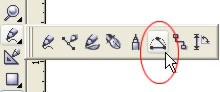
The 3 point curve tool is located in the toolbox, on the Curve flyout.
- Click where you want to start the curve, drag to where you want the curve to end, and release the mouse button.
- Move the pointer to where you want the apex of the curve to be. A dynamic preview of the curve appears, helping you make adjustments on the fly. Click when the curve is the shape you want.
The resulting curve contains only two nodes – a start node and an end node.
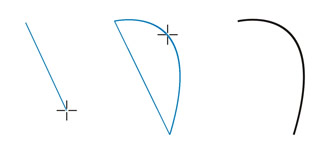
Drawing a 3-point curve
Most read
- Triple EDP award win for Mimaki
- New HP Printer series for busy enterprise environments
- HP Inc. and manroland Goss sign reseller agreement for Digital Finishing Systems
- Fujifilm to cease sales of Acuity Prime and Acuity Ultra products
- Spicers announces plans to acquire Spandex Australia
- New MD for Fujifilm Business Innovation Australia